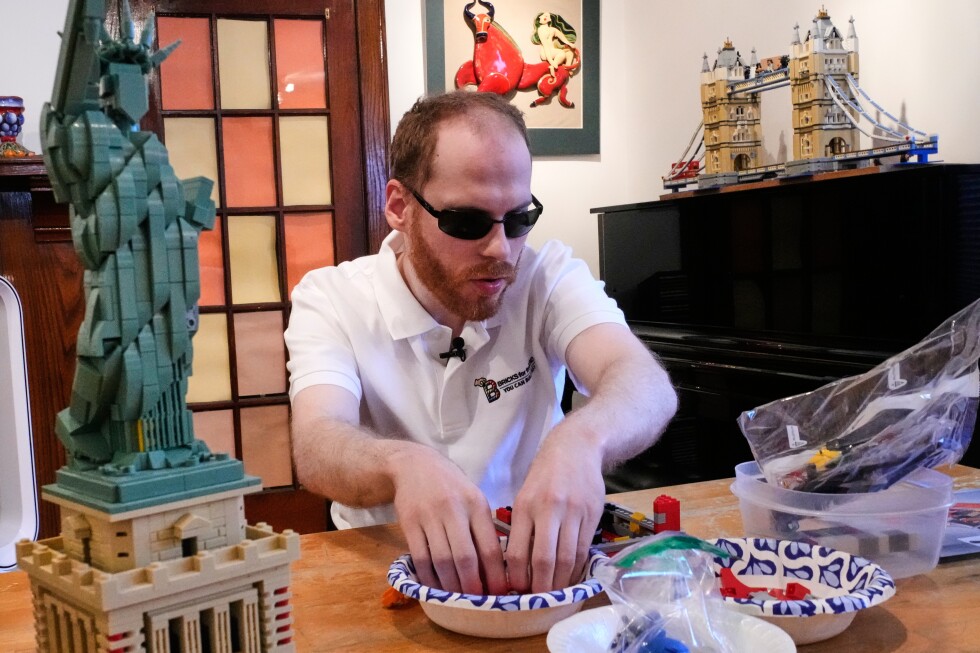
Blind grandma finally books that flight without frustration. Freelancer with macular degeneration lands the gig because your form labels actually speak sense. That’s the real magic of screen reader testing—not some abstract a11y checkbox, but doors flung open for millions.
And here’s the kicker: you can nail the basics right now, in five minutes flat. No PhD in semiotics required.
Screen reader testing. It’s the developer’s secret weapon against the 60-70% of accessibility bugs that laugh at your automated scanners. Those sneaky issues—like alt text that’s just ‘image.jpg’ or buttons whispering ‘click here’ six times in a row—only reveal themselves when a synthetic voice takes the wheel.
Look, I’ve been there: first go with VoiceOver, and it’s like a caffeinated auctioneer speed-reading your DOM. Pure chaos. But once you crack the shortcuts? Pure power.
Why Screen Reader Testing Changes Everything for Users
Picture the web as a vast, chaotic city. Sighted folks zoom with GPS eyes. Screen reader users? They’re hailing cabs blindfolded, relying on street signs that scream clearly or mumble nonsense. Get it wrong, and they’re lost—abandoning your site faster than a bad date.
But fix it? Suddenly, your dashboard isn’t ‘React App’ drivel; it’s ‘Dashboard - MyApp’, a beacon. Headings stack logically, like chapters in a gripping novel. Forms announce purpose, not just ‘edit text’. Real people thrive.
“Automated accessibility tools catch roughly 30-40% of accessibility issues. The rest? You need manual testing.”
That’s straight from the trenches—truth that hits hard. Tools like Axe or Lighthouse? Great starters. But screen readers expose the human element no bot grasps.
How Do I Test with VoiceOver on Mac—Right Now?
You’re on a Mac? VoiceOver’s baked in, free as air. Cmd + F5 flips it on. Boom.
VO (that’s Ctrl + Option) + Right Arrow strolls element by element. Listen sharp: does that image purr purpose, or croak ‘image123.png’? VO + Space activates links. VO + U spins the Rotor—jump to headings, forms, like a superpower menu.
Test your site in Safari (Chrome? Meh, VoiceOver favors Apple). Sixty seconds: navigate, ear on. Headings logical? Buttons descriptive? Turn off with Cmd + F5. Done.
Frantic voice? Ctrl pauses it. Not reading right? Safari only, folks.
And my hot take—the one nobody’s shouting: this is the stealth training for AI’s future. Think multimodal agents ‘reading’ sites for blind users or voice interfaces. Ignore screen readers now, and your AI dreams crash on the same rocks. Historical parallel? Early web devs scoffed at tables for layout; now we’re paying with endless retrofits. Don’t repeat.
NVDA for Windows Devs: Free and Fierce
Windows crew, meet NVDA—open-source warrior from nvaccess.org. Download, install, unleash.
Down Arrow next element. Up backtracks. Enter activates. H hops headings, K links, F forms. Insert + F7 lists everything—headings, links—like a tactical map.
Browse mode’s default: single keys rule. Focus mode sneaks in? Insert + Space toggles. Silence? Ctrl. Stop speech? Insert + S.
Same checklist crushes it: page title meaningful? Heading hierarchy? Tabs announce actions? Forms labeled? Images purposeful?
Short para punch: It’s that easy.
Now, sprawl time—the five-check gauntlet that snags 80% of gremlins. Load page: title sings? Navigate headings: H1 main, H2 sections—no skips. Tab interactives: ‘Read more about pricing’, not vague repeats. Forms: labels lead. Images: describe or hush.
Custom dropdowns mumbling? ARIA roles, sure—but why not native ? Simpler, screen-reader friendly from birth.
Stuck? Rotor/Insert + F7. Custom components ghosting? Keyboard traps or missing roles—fix or swap to HTML natives.
This isn’t a full audit. That’s for pros. But five minutes per key page? Gold. Post-feature? Mandatory.
Will Screen Reader Testing Slow My Workflow?
Hell no. It’s faster than debugging that one flakey React hook.
Pick a page now. Fire up VoiceOver or NVDA. Run checks. Shocked at the slop? Join the club. Fixed? Users cheer.
Energy surge: accessibility’s the ultimate platform shift. Like mobile-first woke us up, a11y-first future-proofs against lawsuits, churn, irrelevance. AI amps it—voice bots, agents demanding semantic DOMs. We’re building the web for cyborgs and humans alike. Wonder ahead.
But corporate spin check: some teams hype ‘a11y compliant’ off one scan. Bull. Manual screen reader love’s the proof.
FAQ time, searcher style.
🧬 Related Insights
- Read more: Walmart’s ChatGPT Checkout Bombed 3x Harder—Thanks to Its ‘Perfect’ Interface
- Read more: Claude Code Parallel Agents: Refactor in Minutes, Not Hours, with Git Magic
Frequently Asked Questions
How do I turn on VoiceOver for quick testing? Cmd + F5 on Mac, Safari best. VO + Right Arrow to navigate.
What’s the fastest NVDA screen reader test? Down Arrow elements, H for headings, check labels and titles. Ctrl to pause chatter.
Do I need screen reader expertise to start? Nope—five minutes, five checks catch most issues. Practice on your site today.